
Before you begin
Collect the three account fields.
An Xtream Codes-compatible login normally includes a server or portal address, username, and password. Use the exact details supplied by your provider. A website login, billing login, or provider app login may be different from the playback credentials required by a player.
SluiceBox does not supply provider accounts. It cannot generate credentials, identify unauthorized services, or recover an account managed by another company.
- Server address: Usually a host name or IP address, sometimes with a port.
- Username: Preserve capitalization and avoid leading or trailing spaces.
- Password: Enter it exactly as issued. The app lets you view the value while correcting it.
Connect the source in SluiceBox.
- Install and open SluiceBox on a supported Google TV or Android TV device.
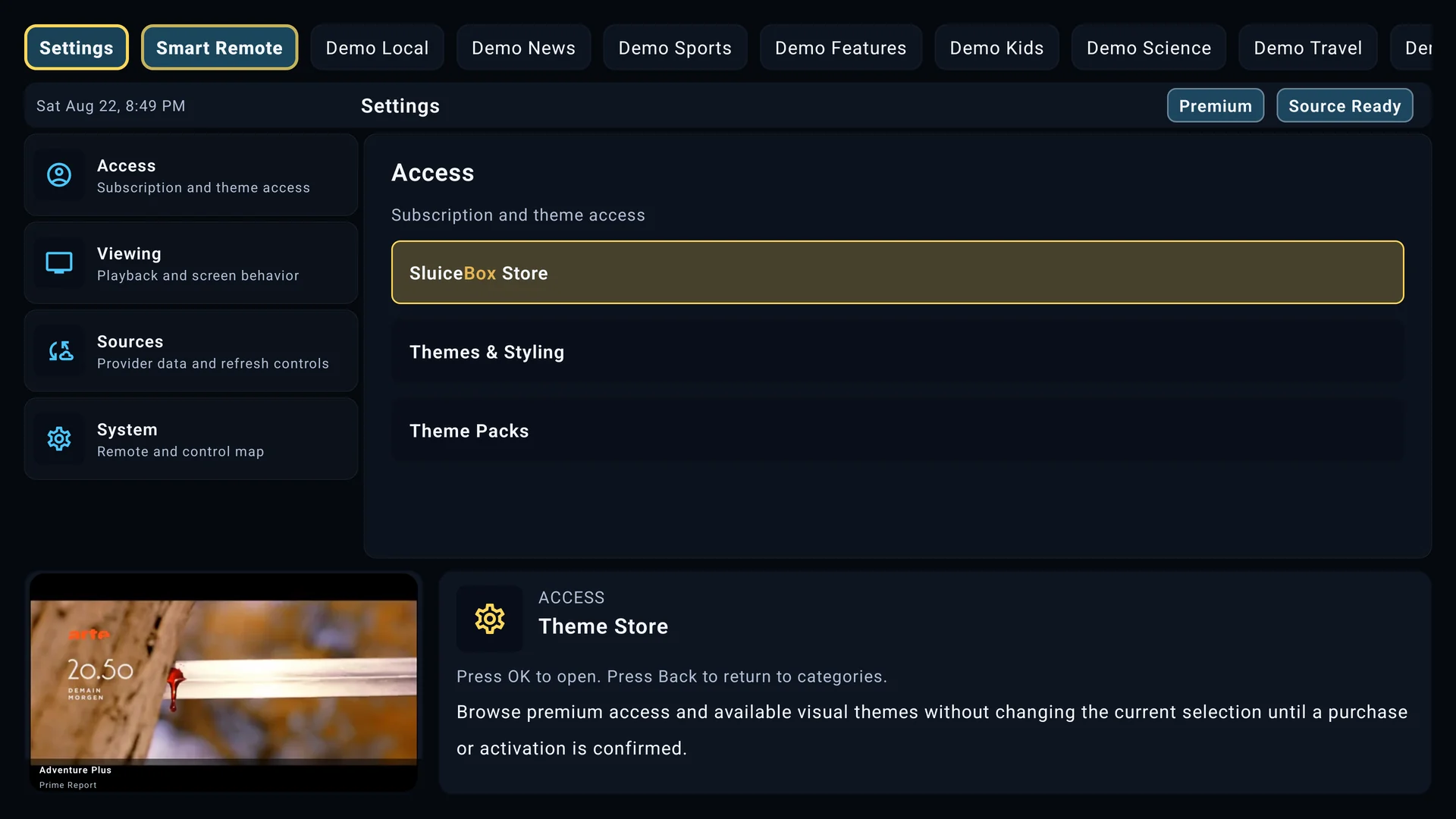
- During first-time setup, choose Xtream Codes. To add another source later, open Settings and the source editor.
- Enter the server address, username, and password. SluiceBox checks compatible HTTP and HTTPS endpoint forms when necessary.
- Review the confirmation screen and choose Continue. SluiceBox verifies the account before saving it.
- Allow the initial source import to complete before judging whether guide or VOD categories are missing.
If verification fails, SluiceBox keeps the entered values available so you can correct a typo instead of starting over.
What the first import includes
SluiceBox requests the channel categories, live streams, EPG data, movie catalog, and series catalog made available by the source. These sections can finish at different times, particularly when a provider has a large catalog or a television has limited memory.
A successful login does not guarantee every feature will be populated. Some providers omit XMLTV guide data, VOD metadata, catch-up details, subtitles, or alternate audio tracks. SluiceBox can only display what the source returns.
When verification or loading fails
Invalid username or password
Recheck capitalization, spaces, and whether the provider issued a separate player login. Confirm the account is active directly with the provider.
Provider address cannot be reached
Check the host and port, try the address exactly as supplied, and confirm the provider is online. A VPN, DNS filter, router rule, or regional restriction can also prevent a television from reaching an otherwise valid server.
Playlist data could not be loaded
The account may authenticate while individual catalog endpoints are unavailable or formatted unexpectedly. Retry after confirming the same account works on the same network, then contact SluiceBox support with the app version, device model, and the displayed error. Never send the password.
Channels appear but do not play
Confirm the provider permits another active connection and that the stream works on the same device and network. Playback formats, redirects, headers, expired stream tokens, and provider limits can affect live playback independently of login.
Keep account credentials private.
Do not publish screenshots containing server addresses, usernames, passwords, or playlist URLs. M3U links frequently embed credentials directly in the URL. When requesting support, redact those values and share only the device model, Android version, SluiceBox version, source type, and exact error message.